 and select Share.
When you create a workspace, you are automatically assigned a share status of "Author" and others are denied access (assigned a share status of "Deny"). You can share an open workspace with another user from your organization or from another organization by changing the Share status for that user.
To change the Share status of the open workspace:
and select Share.The Sharing dialog appears. It lists all other users in your network and each user's Share status for this workspace.
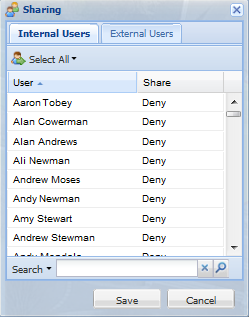
| Share status | Description |
|---|---|
| Deny | User is not allowed any access to the workspace. |
| Restricted | User can view the workspace, but cannot change and save it. |
| Viewer | User can view the workspace and can save a copy of it ("Save As") with a different name. The user is automatically assigned a share status of "Author" for the saved copy. |
| Contributor | User can make changes and save the changed workspace. However, changes may be lost if the Author or another Contributor makes changes at the same time, depending on who saves the workspace first. |
| Author | User can make changes, save the workspace, and create a new workspace from it ("Save As"). However, changes can be lost if a Contributor makes changes at the same time, depending on who saves the workspace first. The user who created the workspace is automatically the Author. |
IMPORTANT: Authors and Contributors need to coordinate the timing of their changes.
When a user opens a workspace as a Viewer or as a Contributor, the workspace appears in its current state. That is, if the Author is working in that workspace at the same time, the Viewer or Contributor will see any unsaved changes the Author made to that workspace.
NOTE: If a Contributor or Viewer changes a workspace, but wants to restore it to how it appeared when opened, they can reload the workspace.