 lets you annotate
your images and maps with markers (icons), which you can set up to link to websites. Before you can
open the website link, you need to set up the marker's properties with the URL of the website you want it to open.
lets you annotate
your images and maps with markers (icons), which you can set up to link to websites. Before you can
open the website link, you need to set up the marker's properties with the URL of the website you want it to open.The Marker Tool lets you annotate
your images and maps with markers (icons), which you can set up to link to websites. Before you can
open the website link, you need to set up the marker's properties with the URL of the website you want it to open.
To setup a marker to link to a URL:
| In this field's value property … | Type the following … |
|---|---|
| description | A description for the link. |
| link | The URL that should open when the marker is clicked.
You must include the "http://" portion of the URL. For example: http://www.eastmanhouse.org/ (You can also paste a value into this field.) |
| Link Text | The text portion of the link. This is the portion you will click to open the link. |
NOTE: The link property can open only websites, not Internet images. If you want a marker to open an Internet image, see Linking to an image from a marker.
To open a link:
 .
.
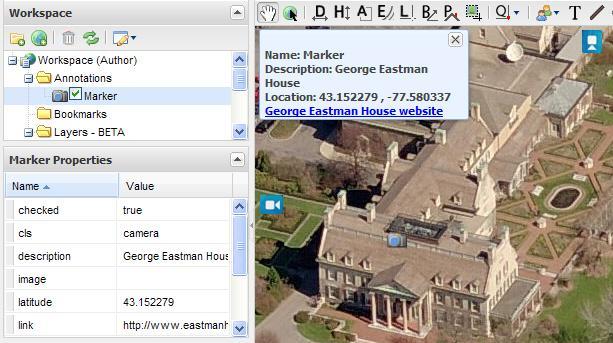
The linked website opens in a new browser window.